Welcome to the world of typography in Photoshop, where we'll sprinkle a touch of magic on your text. Whether you're a design enthusiast or just diving into the world of creative visuals, let's explore how to weave beautiful text effects using the wizardry of Photoshop.
1. Open Photoshop and Create a New Document
Begin by opening Photoshop and creating a new canvas. Consider the purpose of your design – whether it's a stunning poster, social media graphic, or a unique header for your blog. Choose dimensions that suit your vision and hit that 'Create' button.
2. Choosing the Right Font
Selecting the perfect font is like choosing the right spell for your magical incantation. Experiment with different fonts until you find one that resonates with the vibe you're aiming for. Photoshop offers a vast array of fonts, from elegant scripts to bold sans-serifs – the choice is yours.
3. Playing with Size and Spacing
Once you've chosen your font, it's time to play with size and spacing. Adjust the font size to fit your canvas, and experiment with letter spacing and line height. This step ensures your text is not just readable but visually pleasing.
4. Colour Palette Magic
Now, let's add some colour magic. Explore the colour palette options in Photoshop to find the hues that complement your design. Whether you opt for a monochromatic palette or a vibrant spectrum, let the colours harmonise with your overall vision.
5. Layer Styles
Here comes the real magic – layer styles. Right-click on your text layer, navigate to 'Blending Options,' and a treasure trove of effects awaits. From shadows and glows to bevels and embossing, these layer styles can transform your text into something truly enchanting.
6. Adding Depth and Dimension
Gradients are like the shifting hues of a magical sunset. Apply gradient overlays to your text for a touch of dimension. Play with different gradient styles, and watch your text come alive with depth.
7. Creating Texture
Texture can turn a flat design into a tactile masterpiece. Experiment with adding texture overlays to your text. Whether it's a subtle paper grain or a bold metallic sheen, textures add an extra layer of magic to your typography.
8. Smart Objects and Filters
For those seeking an extra twist in their magic, consider converting your text into a Smart Object. This allows you to apply filters like blurs or distortions without affecting the original text. It's a powerful technique for adding unique effects.
9. Animation Enchantment
Feeling adventurous? Photoshop allows you to create animated text effects. Experiment with the timeline feature to add subtle movements or dazzling animations to your text, making it truly magical.
10. Saving Your Masterpiece
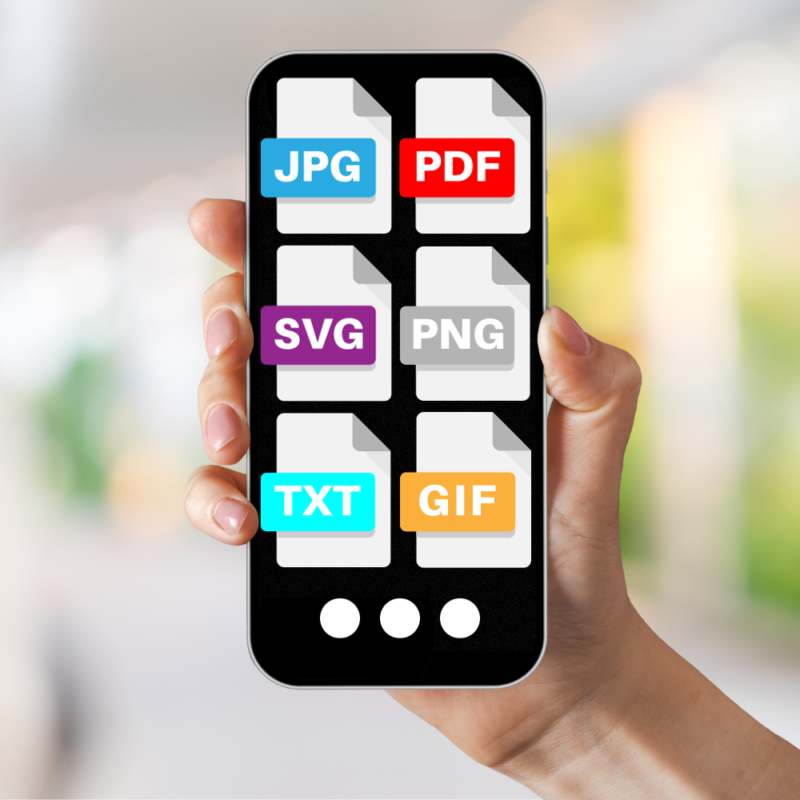
Once you've crafted your text into a spellbinding masterpiece, don't forget to save your work. Choose a format that suits your needs – JPEG for online use, PNG for transparent backgrounds, or even consider saving it as a Photoshop document (PSD) to retain all your magical layers for future edits.
There you have it – your journey into typography magic with Photoshop. Now, armed with these enchanting techniques, go forth and create text that tells a captivating visual tale. May your designs be spellbinding and your creativity boundless!